Stripe Webhook Input
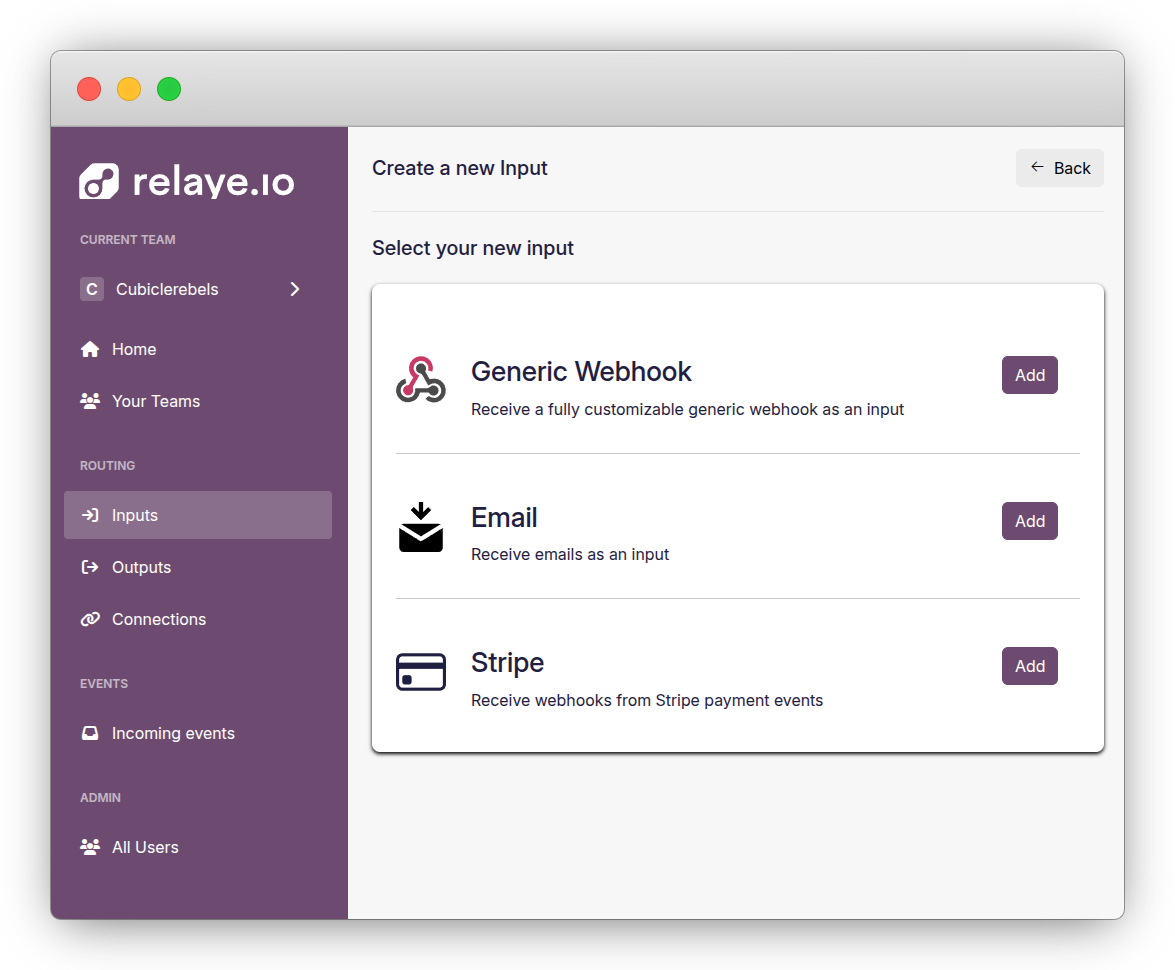
The Stripe input is specifically designed to receive and validate webhook events from Stripe, such as payment confirmations, subscription updates, and invoice notifications.
How It Works
When you create a Stripe input, Relaye generates a unique webhook URL that you can configure in your Stripe dashboard. When a Stripe event occurs:
- Stripe sends the event data to your Relaye webhook URL
- Relaye validates the Stripe signature (if configured)
- The event data is stored as an incoming log
- Any enabled connections linked to this input are triggered
- Each connection applies its template to the event data
- The formatted notification is sent to the configured output
The Stripe input includes signature verification to ensure that webhook events come from Stripe and not unauthorized sources.
Creating a Stripe Input
To create a Stripe input:
- Go to the Inputs section
- Click New Input
- Select Stripe as the input type
- Give your input a descriptive name
- You can leave Stripe webhook secret blank for now
- Save to generate your unique webhook URL
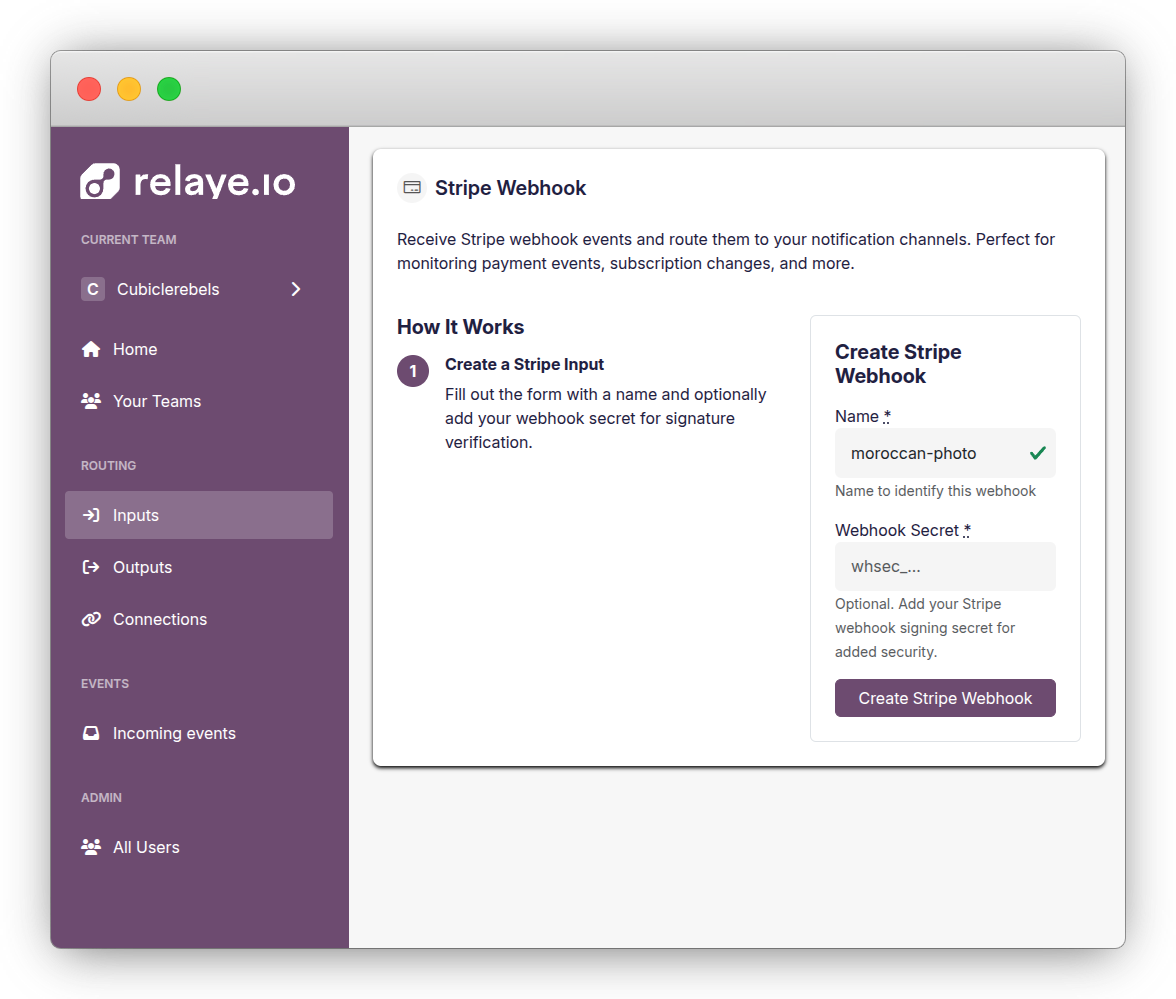
After saving, you'll see your unique webhook URL. This is the URL you'll configure in your Stripe dashboard.
Configuring Stripe
To use your Stripe input with Stripe:
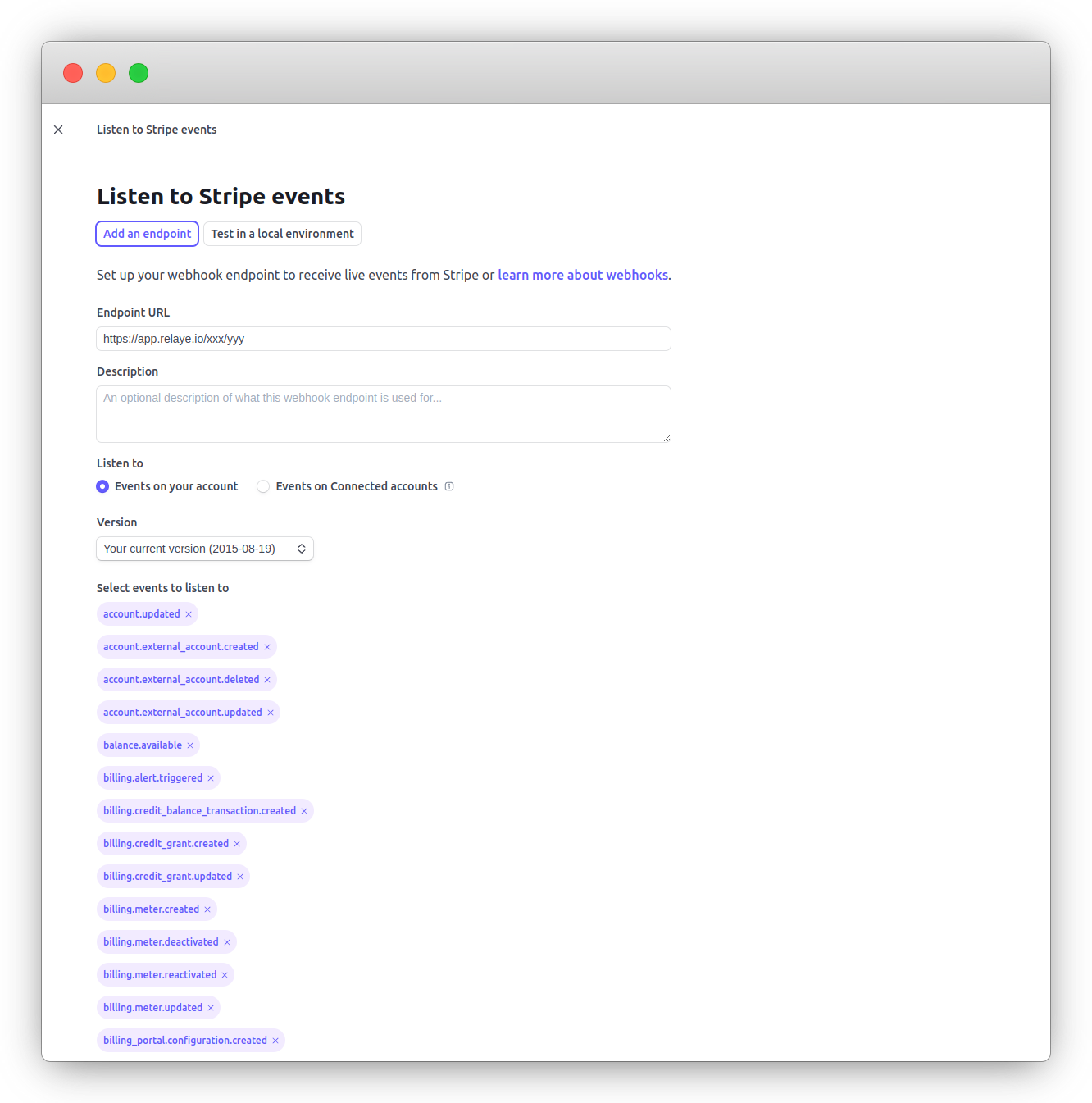
- Go to your Stripe Dashboard
- Click Add endpoint
- Enter your Relaye webhook URL
- Select the events you want to receive (or choose "Select all events")
- Click Add endpoint
- Copy the Signing secret provided by Stripe
- Update your Relaye Stripe input with this signing secret
Signature Verification
Stripe includes a signature with webhook events to verify their authenticity. To enable signature verification:
- Get the webhook signing secret from your Stripe dashboard
- Edit your Stripe input in Relaye
- Add the signing secret to the Webhook Secret field
- Save your changes
With signature verification enabled, Relaye will validate each incoming webhook event and reject any with invalid signatures.
Danger
If you leave this section blank, all incoming webhooks will be processed with no verification.
Stripe Event Data Structure
Stripe events have a standardized structure that includes:
- id: A unique identifier for the event
- type: The type of event (e.g.,
payment_intent.succeeded) - data: The specific object related to the event
- created: When the event occurred
Example Stripe Event Data
{
  "id": "evt_1KjLd7J2nTHGnBqV2mnnz81k",
  "object": "event",
  "api_version": "2020-08-27",
  "created": 1647987654,
  "data": {
    "object": {
      "id": "pi_3KjLd7J2nTHGnBqV0Ld8EcVu",
      "object": "payment_intent",
      "amount": 2000,
      "currency": "usd",
      "status": "succeeded",
      "customer": "cus_LZ8YJpLY1TqvRt",
      "payment_method": "pm_1KjLd7J2nTHGnBqVGh6Vj4dw",
      "receipt_email": "customer@example.com"
    }
  },
  "livemode": false,
  "type": "payment_intent.succeeded",
  "pending_webhooks": 1
}
Common Stripe Event Types
Here are some of the most commonly used Stripe event types:
- payment_intent.succeeded: A payment has been successfully processed
- payment_intent.payment_failed: A payment attempt has failed
- customer.subscription.created: A new subscription has been created
- customer.subscription.updated: A subscription has been updated
- customer.subscription.deleted: A subscription has been canceled
- invoice.payment_succeeded: An invoice has been paid
- invoice.payment_failed: An invoice payment has failed
- charge.refunded: A charge has been refunded
You can find a complete list of event types in the Stripe documentation.
Common Uses
Stripe inputs are typically used for:
- Payment Notifications: Get notified when payments succeed or fail
- Subscription Management: Track subscription creations, updates, and cancellations
- Invoice Monitoring: Monitor invoice payments and failures
- Dispute Alerts: Get notified about customer disputes
- Revenue Tracking: Track revenue across your Stripe account
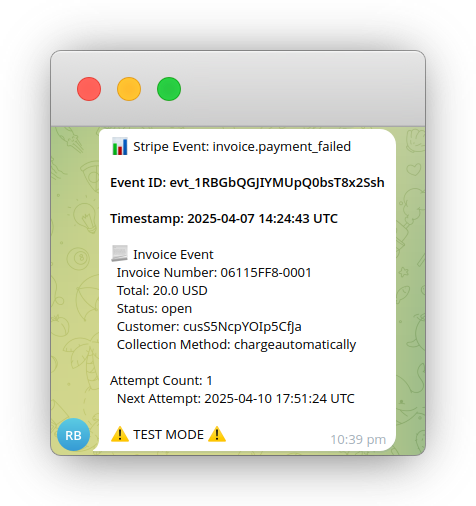
Example Notification
Troubleshooting
Common Issues
Event Not Received
If your Stripe event isn't being received:
- Verify the webhook URL is correct in your Stripe dashboard
- Check that you've selected the correct event types to receive
- Test the webhook in your Stripe dashboard
- Check the incoming logs in Relaye
Signature Verification Failures
If events are being rejected due to signature verification failures:
- Verify that your webhook secret is correct
- Check that you're using the latest webhook secret from Stripe
- Ensure your server time is synchronized correctly
Viewing Stripe Event Logs
You can view all incoming Stripe events by:
- Going to the Inputs section
- Clicking on your Stripe input
- Navigating to the Incoming Events tab
This will show you all received events, their data, validation status, and processing status.
Best Practices
- Always use signature verification for production environments
- Create separate inputs for different Stripe accounts
- Be selective about which event types you subscribe to
- Use template conditionals to format different event types appropriately
- Monitor failed signature verifications as they may indicate attempted fraud